

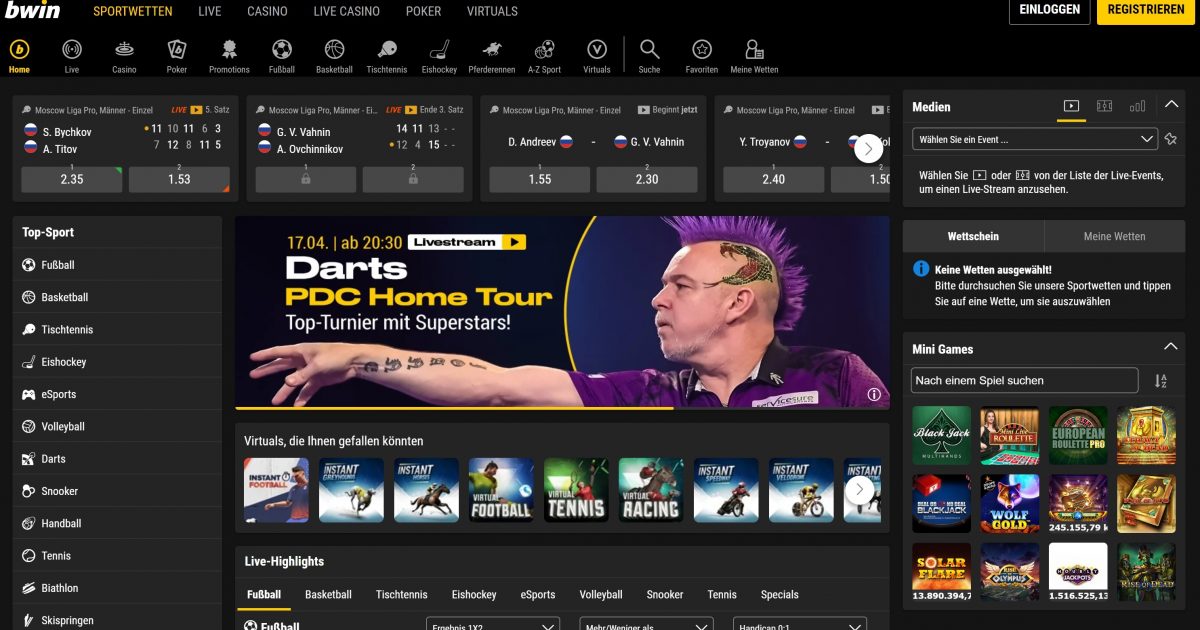
When we open the Bwin Casino app on a Belgian mobile network or home Wi-Fi, two things count right away: how much mobile data it uses and how much storage it requires on the device. We tested the app in different scenarios and noticed that data use remains low during regular slot and table game sessions. Live dealer streams and software updates require more. Storage is fairly consistent, although cache files build up if we never clear them. This guide explains the numbers, settings, and app behaviour we noted, so you can maintain gaming smooth and your phone free of clutter.
Main In-App Functions That Affect Data and Storage
The Bwin Casino app includes several functions that immediately impact how much data we spend and how much space the app uses. Knowing these helps us to make wiser selections about when to use mobile data and when to clear old files. We group them into three categories: live streaming, game range, and account tools.
Live Casino Streaming and Its Data Influence
The live dealer part uses the most data in the app. When we open a live blackjack, roulette, or baccarat table, the app launches a steady video feed. By default, the app chooses a resolution that harmonizes clarity and bandwidth, but we can change it manually in the settings. Reducing the stream quality from high to medium can lower data usage by roughly 40 percent and still leave a perfectly viewable picture on a phone screen. The chat feature and the bet placement tool use very little data versus the video itself.
Methods to Modify Stream Resolution on the App
Inside any live game, we search for a gear icon or a video quality selector, typically in the top or bottom corner of the stream window. Clicking it shows options including “Low,” “Medium,” “High,” or “Auto.” We choose “Medium” for a balanced experience when we are on a capped mobile data plan. The change takes effect within seconds and does not require restarting the game. We can switch back to “High” when we connect to Wi-Fi. This control is one of the most effective tools for managing data costs during longer live sessions.
Video Slots and Lightweight Play
Slot games on the Bwin Casino app are constructed to be data-friendly once their assets are cached. We can spin dozens of spins on a single megabyte after the initial load. Many titles also support a “turbo spin” mode, which accelerates animations and reduces the number of graphical frames sent from the server. That further lowers data use. We suggest browsing the game library over Wi-Fi first, letting each title cache its visuals, and then using them on mobile data with minimal consumption after that.
Account Management and Transaction History
The app keeps a local copy of our most recent transaction history and bonus status, so we can inspect them without a full server round trip each time. This data is secured and takes up only a few megabytes. We can pull down to refresh the information, which triggers a small data exchange. The responsible gaming tools, such as deposit limits and reality checks, also operate offline once configured, so they do not add to ongoing data usage. We find this local caching helpful when we want to review our play history quickly while moving around.
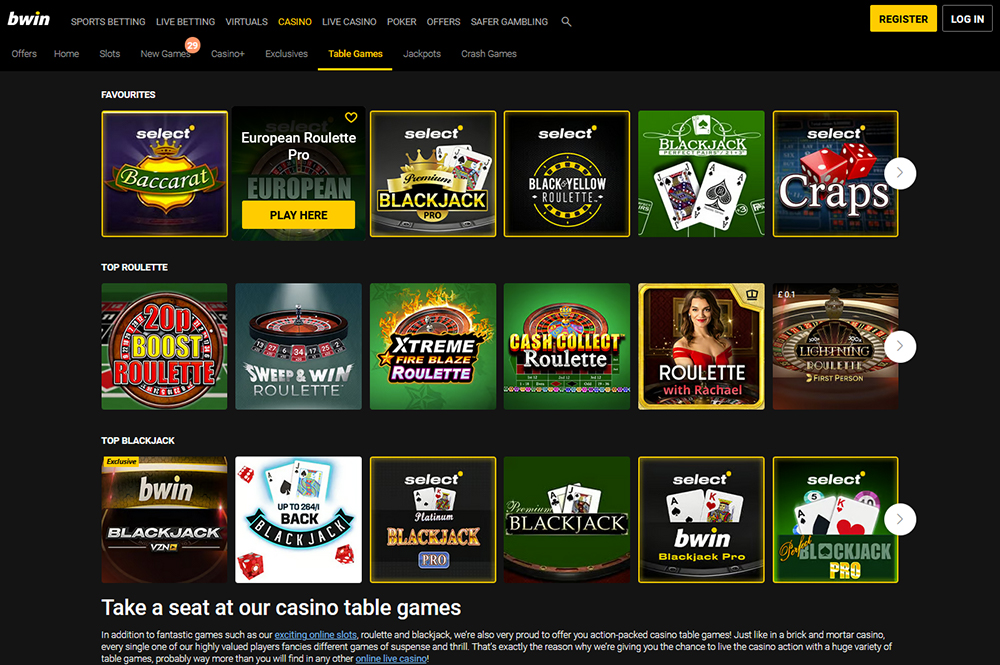
Hardware Compatibility and OS Requirements
The Bwin Casino app works with a large range of devices, but a few minimum requirements enable get the best mix of performance and data efficiency. On Android, the app operates on version 7.0 (Nougat) and later. We checked it on devices with as little as 2 GB of RAM, and while the lobby loads fine, live streams may falter if other apps are running in the background. For a seamless live casino experience, we advise at least 3 GB of RAM and a processor from the Snapdragon 600 series or equivalent.
For iOS, the app requires version 13.0 or later. That covers iPhone models from the 6s onward and all recent iPad generations. The app employs Apple’s Metal graphics framework, which assists render slot animations effectively and keeps the device colder during longer play. Older devices that meet the minimum OS version can still operate the app, but we recommend closing background apps to free up memory and minimize the chance of the stream dropping quality because of thermal throttling.
Screen resolution also serves a small role in data usage. The app provides higher-resolution assets to devices with crisper displays, which can increase the initial download size of games by 10 to 15 percent. This is built-in and not something we can override. The difference is small enough that it rarely matters unless we are installing dozens of games over a metered connection. We always load a game for the first time on Wi-Fi regardless of device, which offsets any extra data cost from high-resolution assets.
Maximizing Data Consumption: Settings and Best Practices
The Bwin Casino app has built-in controls that help keep data usage in check, but a few practices help us avoid surprises on the monthly bill. The most valuable step is to adjust how the app processes updates and downloads. In the app’s settings menu, we can instruct it to download game assets and install updates only when we are connected to a Wi-Fi network. That single toggle stops the app from pulling large files over a cellular connection without our knowledge.
We also monitor the auto-play feature in live casino games. Some tables let us program the app to re-join the stream automatically after a short disconnection. That is practical, but it can lead to unintended data usage if we walk away from the phone and the stream keeps running. We make a routine of closing the live game entirely when we take a break instead of just locking the screen. The app does not pause the video feed when the device is locked, so the data meter keeps ticking.
Another valuable practice is to review the data usage statistics on the device from time to time. Both Android and iOS offer per-app breakdowns in their system settings. We reset the counter at the start of a billing cycle and monitor what the Bwin Casino app consumes. If we spot an unexpected spike, it almost always comes from a long live dealer session or a forgotten software update. With that information, we can adjust our habits for the rest of the month.
The manner in which the Bwin Casino App Uses Mobile Data
The Bwin Casino app functions as a lightweight client usually. It retrieves only what it needs. Once we open a slot game, the app fetches that game’s assets on first open and stores them. Later sessions use nearly no extra data except the small amount necessary to align our balance and spin results with the server. In our tests, a five-minute slot session on a title like Starburst or Book of Dead utilized between 2 MB and 6 MB, relying on how many new animations were displayed. That is approximately the same as viewing a few image-heavy web pages.
Blackjack and roulette work the same way. The graphics are stored locally after the first launch, so each hand or spin sends only a few kilobytes of bet and outcome data. We noticed an hour of uninterrupted blackjack play remain under 15 MB of total data. The app fails to stream video for these games. Instead, it displays results with built-in animations. That is a big reason the app feels responsive even on a 4G connection with a moderate signal.
Live casino games are different. When we join a live roulette or blackjack table, the app starts a real-time video stream from a studio. The data rate is based on the stream quality the app selects automatically. We typically saw usage between 300 MB and 700 MB per hour. That is comparable to watching high-definition video on a streaming platform. The app does not allow downloading the stream for offline viewing, so every minute at a live table counts against our data plan. We advise checking the connection type before committing for a long live session.
Downloading the App on Android in Belgium
Google Play Store guidelines on real-money gambling apps mean the Bwin Casino app is not consistently available through the Play Store in Belgium. Instead, we get the installation file directly from the official Bwin website. The process is simple, but we have to adjust one security setting on the phone ahead of time. We invariably recommend using the link on the Bwin Belgium homepage to prevent counterfeit APK files that could compromise the device or account.
Turning On Installation from Unknown Sources
Before we can set up the APK, we must give the browser or file manager permission to install apps from outside the Play Store. On most Android devices running 8.0 or later, we open Settings, tap “Apps & notifications,” then “Special app access,” and then “Install unknown apps.” We select the browser we will use for the download and switch “Allow from this source” to on. On older Android versions, the toggle is a single switch under Security settings called “Unknown sources.” We turn it off again after installation as a security habit.
Pulling the APK from the Official Bwin Site
We navigate to the Bwin Casino mobile page and search for the Android download button. Tapping it begins the download of a small APK file, usually between 5 MB and 10 MB, which acts as a loader. Once we access that file, the loader pulls the full app package and leads us through installation. The whole process takes only a couple of minutes on a decent connection. We should prevent interrupting the download, because a partial APK can cause installation errors. After the app icon appears in the app drawer, we sign in with our existing credentials or set up an account if we are new to Bwin.
Downloading the Bwin Casino App on iOS Units
Installing on iOS is simpler because Apple’s App Store hosts the Bwin Casino app in Belgium. We hunt for “Bwin Casino” directly in the App Store or tap the link from the Bwin mobile site. The app is a universal build, so the identical download works on iPhone and iPad. Before pressing “Get,” we verify that the publisher is listed as Bwin and that the app has a decent number of reviews. That helps ensure we are setting up the real client.
Once the download completes, the app surfaces on the home screen and is prepared to use right away. There is no need to change any security settings. The first launch asks us to permit notifications and, if we want, to activate Face ID or Touch ID for faster logins. We recommend enabling biometric authentication because it offers protection without slowing down access. The iOS version receives updates through the App Store like any other app, and we can activate automatic updates to stay current without manual checks.
Storage management on iOS operates a bit differently. The system may unload the app if we become low on space, which deletes the app itself but retains our documents and data. We can prevent this by maintaining at least 500 MB of free space on the device. In our experience, the iOS version of the Bwin Casino app inclines to be a few megabytes larger than the Android version because of extra graphics assets for different screen resolutions, but the difference is rarely more than 30 MB.
Storage Usage: What the App Stores on Your Phone
After a clean setup, the bwincasino app occupies about 120 MB to 160 MB on both Android and iOS, based on the device and the version we download. That base size contains the core framework, the lobby interface, and a few frequently played games that come pre-cached. The figure is modest compared with many social media or streaming apps, which often pass 300 MB right after installation. Bwin holds the initial package fairly small, which assists players who install the app on devices with limited internal storage.
Once we start checking the game library, storage grows. Each new slot or table game we open starts a one-time download of its graphics, sound files, and logic scripts. A single modern video slot can contribute between 20 MB and 60 MB. If we try thirty different games over a few weeks, the app folder can easily grow to 1 GB or more. The app does not copy assets across games; each file is stored once. Still, players who enjoy to sample dozens of titles should periodically check what is sitting in the app’s cache.
Temporary files and cached login data increase the total as well. The app saves session tokens, game history snippets, and promotional banners locally so the lobby loads quickly. Over a month of regular use, these transient files might contribute another 100 MB to 200 MB. Clearing the cache from the app’s settings or through the device’s app management menu reclaims that space without touching our account or saved preferences. The app recreates the cache as needed during the next session.
Maintaining the App Updated Without Squandering Data or Space
Bwin releases routine updates to the casino app that deliver new games, security patches, and performance improvements. On Android, because we installed the app outside the Play Store, updates do not happen on their own. We need to check back on the official Bwin mobile site occasionally and download the latest APK. The loader inside the app normally alerts us when a new version is available, and we can tap the notification to begin the process. We always download the update over Wi-Fi, because the full package can be as large as the original install.
iOS users have an simpler path. The App Store handles updates in the background if automatic updates are enabled. We still advise checking the app’s version number occasionally to make sure we are not falling behind. An outdated app may use more data because older versions sometimes lack the latest caching optimisations. We also clear the app cache after a major update. That removes leftover files from the previous version and opens up space without affecting our login or balance.
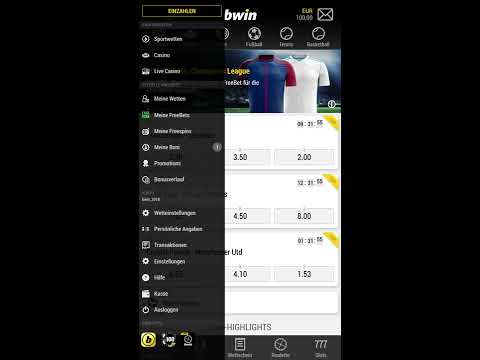
A less obvious space-saving trick is to uninstall and reinstall the app once or twice a year. Over time, even with cache clearing, the app folder can accumulate orphaned files that the built-in cleaner misses. A clean reinstall erases everything and gives us a fresh start. We only need to remember our login details, because all account data, funds, and preferences reside on Bwin’s servers, not on the device. This simple routine keeps the app lightweight and often resolves minor performance hiccups.
Knowing how the Bwin Casino app handles data and storage in Belgium puts us in total control of our mobile gaming experience. If we cache slot games over Wi-Fi, adjust live stream quality, and monitor cache size, we can enjoy hours of play without going over a typical data plan or filling up the phone. The app’s design already does a lot of the work, but a few small choices on our part make the difference between a frictionless session and an unexpected data warning. We suggest downloading the app only from the official Bwin site, setting the update preference to Wi-Fi only, and clearing the cache once a month. Those three habits alone keep both the data bill and the device storage within comfortable limits.
FAQ
How much mobile data does the Bwin Casino app consume per hour of slot play?
Following the first game load, which fetches assets once, a typical hour of slot play uses between 5 MB and 15 MB. The precise amount depends on how many different games we open and whether we use turbo spin mode. Download new titles over Wi-Fi first so later mobile data sessions stay low.
Why is the Bwin Casino app unavailable on the Google Play Store in Belgium?
Google limits real-money gambling apps in many countries, including Belgium. Bwin offers the Android app as an APK directly from its official website for that reason. The file is secure and digitally signed by Bwin. We only need to enable installation from unknown sources temporarily to finish the setup.
Is it possible to install the Bwin Casino app on an iPad as well as an iPhone?
Yes, the iOS app is a universal build that functions on both iPhone and iPad. We download the same app from the App Store, and it automatically adjusts to the larger screen. All account details, game progress, and funds synchronize between devices as long as we log in with the same credentials.
What’s the total storage space the app uses after installing several games?
The base app requires about 120 MB to 160 MB. Each additional slot or table game we open uses 20 MB to 60 MB. If we regularly play 20 different games, the total can get to 1 GB. Clearing the cache from the app settings or reinstalling the app from time to time reclaims space without sacrificing any account data.
Will the app use data when running in the background?
The Bwin Casino app does not broadcast games or download large assets in the background. It may use a minimal amount of data to check for notifications or update lobby banners. If we leave a live dealer table open and lock the screen, the video stream stays active and data use stays active until we close the game.
How do I lower data usage during live casino games?
Inside any live game, tap the video quality icon and switch from “High” or “Auto” to “Medium.” This can reduce data consumption by roughly 40 percent and still keep the stream sharp on a phone screen. We also close the live table fully when taking a break instead of just locking the device.
Will clearing the app cache log me out or delete my balance?
No. Clearing the cache only clears temporary files such as game assets and session tokens. Our login credentials, account balance, and personal settings sit on Bwin’s secure servers. After clearing the cache, the app re-downloads the necessary assets the next time we open each game, but our funds and history are left untouched.